

Hermes Agent is an open-source AI agent framework by Nous Research. It runs in your terminal, as a native desktop app, on messaging platforms, and inside your IDE — and it improves itself by saving reusable procedures as skills it reloads in later sessions. This guide walks the whole install, from prerequisites to a verified working setup.

What you will end up with
- A
hermescommand you can run from any shell. - Python 3.11, Node.js, ripgrep and ffmpeg installed and wired up for you — no manual dependency hunting.
- A working LLM provider plus, optionally, the Tool Gateway (web search, image generation, text-to-speech, cloud browser).
Requirements
On non-Windows platforms the only real prerequisite is Git:
git --versionOn Linux you also need curl and xz-utils, because the installer downloads Node.js as a .tar.xz archive:
sudo apt install curl xz-utilsIf you want the desktop application as well, add a C++ toolchain so native modules can compile:
sudo apt install build-essentialYou do not need to install Python, Node.js, ripgrep or ffmpeg yourself. The installer detects what is missing and handles it.
Step 1 — Install Hermes
Linux, macOS, WSL2 or Android (Termux)
curl -fsSL https://hermes-agent.nousresearch.com/install.sh | bashWindows (native)
Run this in PowerShell:
iex (irm https://hermes-agent.nousresearch.com/install.ps1)macOS and Windows desktop installer
There is also a desktop installer that sets up the command-line tool and the desktop app together. Note that the macOS installer is Apple Silicon only — macOS on Intel is not a supported platform. If you went the command-line route first, you can add the desktop app afterwards:
hermes desktopStep 2 — What the installer sets up
- uv — the fast Python package manager.
- Python 3.11 — installed through uv, no sudo required.
- Node.js v26 — for browser automation and the WhatsApp bridge. An existing system Node 22.22+, 24.11+ or 26+ is used as-is.
- ripgrep — fast file search.
- ffmpeg — audio format conversion for text-to-speech.
- The repository clone, a virtual environment, and the global
hermescommand.
Step 3 — Where everything lands
The layout depends on whether you install as a normal user or as root.
- Per-user install (the git installer) — code in
~/.hermes/hermes-agent/, the binary as a symlink at~/.local/bin/hermes, data under~/.hermes/. - Root-mode install (
sudo curl … | sudo bash) — code in/usr/local/lib/hermes-agent/, binary at/usr/local/bin/hermes, data under/root/.hermes/or$HERMES_HOME.
The root-mode layout matches where other system-wide developer tools land on Linux, which makes it useful on shared machines. Per-user configuration still lives under each user’s own home directory.
Step 4 — First run
Reload your shell so the launcher is on your PATH, then start it:
source ~/.bashrchermesIf you use Zsh instead, substitute source ~/.zshrc.
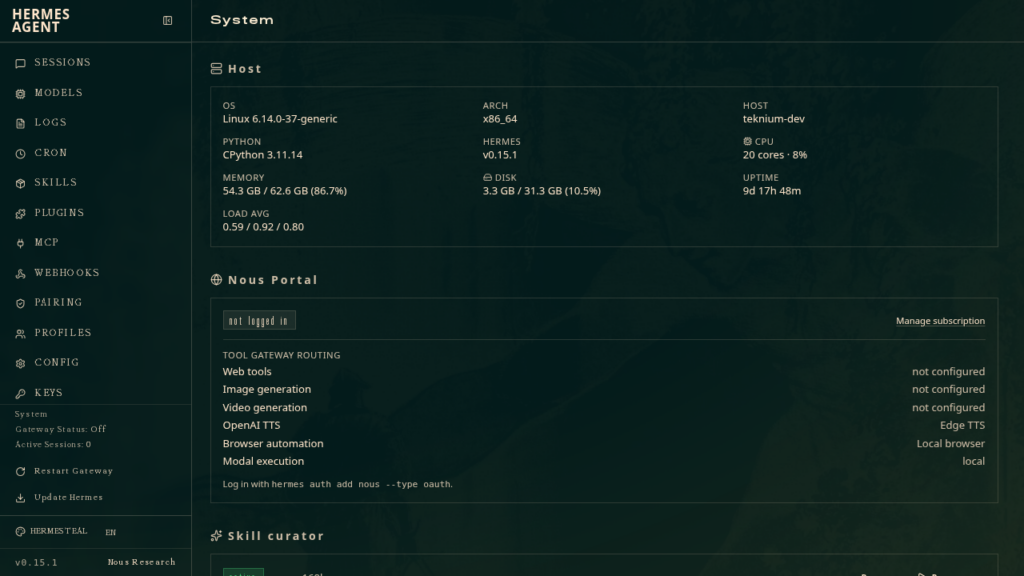
Step 5 — Configure it
Anything you skip during install can be configured later with a dedicated command.
hermes setuphermes modelhermes toolshermes gateway setuphermes config sethermes config getThe fastest path: Nous Portal
A single subscription covers 300+ models plus the Tool Gateway — web search, image generation, text-to-speech and a cloud browser. One command logs you in, sets Nous as your provider and enables the gateway:
hermes setup --portalStep 6 — Verify the installation
hermes doctorThis runs a health check over your configuration and reports what is missing before you hit the problem mid-task.
Install options
The installer pre-installs cua-driver so the Computer Use toolset works the moment you enable it. Two flags change what gets set up.
--skip-browser— skip the Playwright browser install. Useful on headless machines that do not need browser automation.--skip-computer-use— skipcua-driver. It then installs on demand when you enable the tool.
curl -fsSL https://hermes-agent.nousresearch.com/install.sh | bash -s -- --skip-browserInstalling as a service user without sudo
Running Hermes as an unprivileged service account is supported. The only step that genuinely needs root is Playwright’s --with-deps, which installs shared libraries such as libnss3 and libxkbcommon that Chromium requires. An administrator can run that once:
sudo npx playwright install-deps chromiumThen run the normal installer as the service user. It detects the missing sudo, skips --with-deps, and installs Chromium into that user’s own Playwright cache. Service accounts often have a minimal PATH that excludes ~/.local/bin, so make the launcher reachable:
echo 'export PATH="$HOME/.local/bin:$PATH"' >> ~/.bashrcManual and developer installation
If you would rather clone the repository and install from source — for contributing, running a specific branch, or controlling the virtual environment yourself — the project documents a development setup in its contributing guide.
One thing to know: Nix is no longer an explicitly supported install path and is best-effort only, though there is a dedicated Nix and NixOS guide.
Updating and uninstalling
Both procedures are documented under Updating & Uninstalling in the official documentation. Worth reading before you upgrade, since the notes cover how to back up a working setup first.
Troubleshooting
The installer fails early on Linux
Almost always a missing curl or xz-utils. Install both and re-run.
hermes: command not found
The launcher is at ~/.local/bin/hermes and that directory is not on your PATH. Open a new shell, or add it explicitly as shown in the service-user section above.
The desktop app fails to build
Native modules need a C++ toolchain. On Debian and Ubuntu that means build-essential.
Summary
- Make sure Git is present, plus
curlandxz-utilson Linux. - Install with the one-line script, or the PowerShell equivalent on Windows.
- Reload your shell, run
hermesto start, andhermes setup --portalfor the fastest path to a working configuration. - Confirm everything with
hermes doctor.